How to Add Professional Voiceover to Presentations
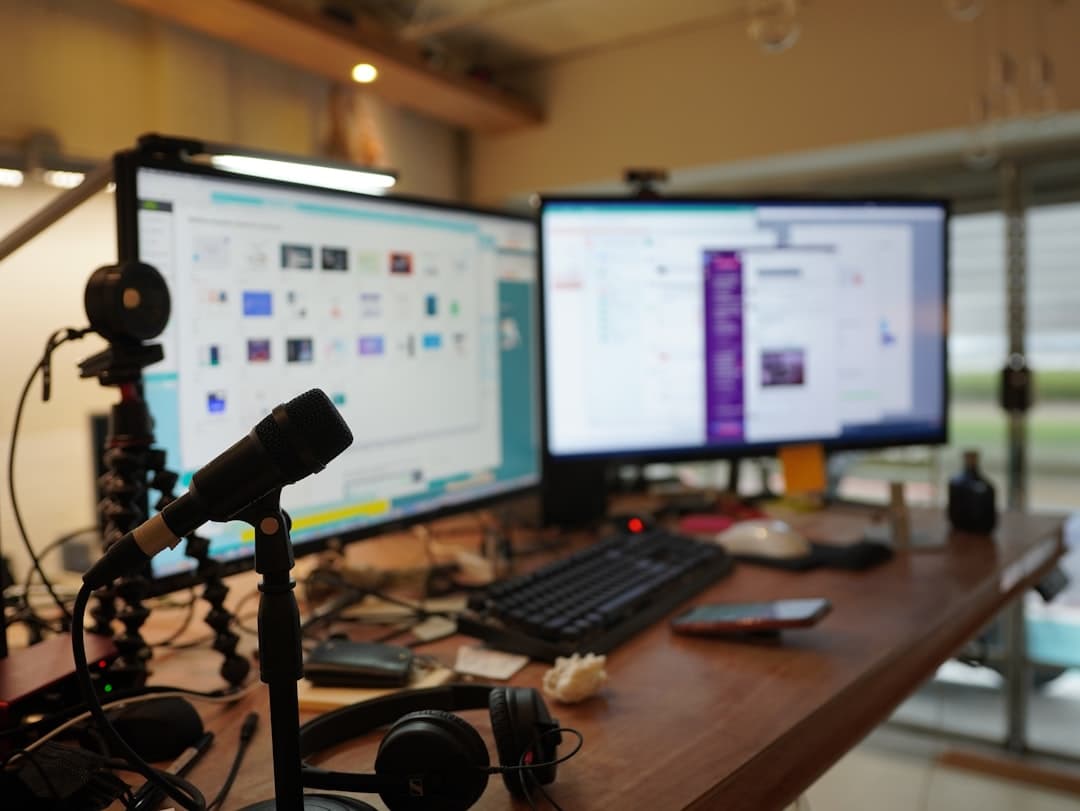
You spend weeks building a sales deck or an investor presentation. The numbers are tight, the design is clean, and then you hit record on the narration and realize your own voice sounds flat, rushed, and full of "ums." A recorded presentation gets exactly one take in front of the viewer, and the audio carries far more of the message than most people expect. Good voiceover for presentations is what turns a slideshow someone clicks through into something they actually watch to the end.
I record and produce this kind of narration regularly for businesses sending decks to clients and investors, so here is a practical walkthrough of how to get it right.
Why a Polished Voice Changes How Your Deck Lands
When a prospect reads your slides in silence, they set their own pace and their attention drifts. A confident, well-paced narration guides them through your argument in the order you intended, with emphasis on the points that matter. That control is the whole reason to add audio in the first place.
A strong corporate presentation voice also signals that you took the work seriously. An investor watching a recorded pitch makes quick judgments about competence, and audio that sounds thin or hesitant works against you before you have made your case. Clear, warm, professionally recorded narration removes that friction and keeps the focus on your content.
Start With a Script Written for the Ear
The most common mistake is narrating the slides word for word. Bullet points are written to be scanned, not spoken, and reading them aloud sounds robotic. Write a separate script meant to be heard.
A few rules that consistently help:
- Keep sentences short. If you run out of breath reading a line aloud, the listener runs out of patience.
- One idea per slide. The voiceover should add context the slide does not show, not repeat the text on screen.
- Read it aloud before you record. You will catch tongue-twisters and awkward transitions immediately.
- Mark your pauses. A beat of silence after a key number lets it land.
Pacing matters as much as wording. Most clear narration sits around 140 to 160 words per minute. For a 20-slide deck, budgeting roughly 30 to 45 seconds per slide puts you near a 10 to 15 minute runtime, which is about the ceiling for holding attention on a recorded presentation. Time your script against that before anyone steps up to a microphone.
Record Clean Audio, or Hire It Out
Even a perfect script falls apart with bad audio. Laptop microphones pick up room echo, HVAC hum, and keyboard clicks, and once that noise is baked in, it is very hard to remove cleanly. The single biggest quality jump comes from recording in a quiet, treated space with a good microphone close to the speaker.
This is where professional PowerPoint narration services earn their place. I record in a Whisper Room vocal booth with a Sennheiser MKH416 into an Apollo Twin interface, which means the source audio is quiet and consistent before any processing happens. The editing and cleanup then happen at my desk in Reaper, with iZotope RX 11 Advanced handling any stray mouth noise or room tone. The result is narration that sits clean and even from the first slide to the last, with matched levels so the viewer never reaches for the volume.
If you do record yourself, get the mic close, kill background noise, record in a small carpeted room rather than an open office, and do a few full takes so you have options to edit from.
Sync the Narration to Your Slides
Once you have your audio, syncing it is straightforward. There are two common approaches.
Per-slide audio clips. Ask for (or export) one audio file per slide, named by slide number. In PowerPoint, go to Insert > Audio > Audio on My PC, drop the clip on its slide, and set it to play automatically. In the playback settings, choose "Play in Background" or set it to start on its own and hide the speaker icon during the show. This method makes edits painless. If slide 7 changes, you re-record one clip instead of the whole track.
Recorded timings. Use Slide Show > Record Slide Show to advance slides in time with a single continuous narration track. This is faster to set up but harder to revise later.
When your timing is locked, export the whole thing as a self-contained file with File > Export > Create a Video. That gives you an MP4 you can email, embed, or upload anywhere, with the narration and slide transitions fused together so nothing drifts out of sync on someone else's machine. Keynote users get the same options under Play > Record Slideshow and File > Export To > Movie.
One delivery tip: ask your voiceover artist for WAV files rather than MP3s. WAV is uncompressed and gives you headroom if you need to adjust anything, and PowerPoint handles it fine.
Choosing Between a Human Read and AI Narration
Synthetic voices have gotten good enough that they are worth considering for internal training decks or quick drafts where budget is tight. For anything client-facing or investor-facing, though, a human read still does things AI struggles with: genuine emphasis, a natural smile in the voice, and the judgment to slow down on the line that actually matters. Listener sentiment toward AI voices is worth understanding before you commit, and RealVOTalent's AI voice sentiment data is a useful starting point if you want to weigh the tradeoff for your specific audience.
My honest take is that the stakes of the deck should decide. A pitch meant to close a deal or raise a round is exactly the kind of material where a real, polished corporate presentation voice pays for itself.
Getting Your Presentation Recorded
Adding professional voiceover to presentations comes down to three things: a script written to be spoken, clean audio recorded in a proper environment, and careful syncing so the finished file plays the same everywhere. Get those right and a static deck becomes something people sit through and remember.
If you have a sales deck or investor presentation that needs polished narration, I would be glad to record it for you. Send me your script and slide count and I will help you map out the pacing and turn it into a finished, ready-to-share file. Reach out through trevorohare.com and let's get your presentation sounding as sharp as it looks.
Need a voice for your project?
Broadcast quality voiceover from my studio, priced instantly by script length. From $75.
Written by

Trevor O'Hare
Podcast Editor & Producer
I'm Trevor O'Hare. I edit podcasts for a living, backed by more than 20 years in professional audio. If your show needs a steadier sound, or your week needs fewer editing hours, that's what I do. Flat rates start at $100 per episode.
Learning voiceover? I also teach at VOTrainer.com.